Performance Monitoring
Understanding Performance Monitoring
Scope: Object Storage Administrator
This section contains a high-level overview for monitoring the storage performance. The Object Storage Performance Monitor allows you to check and monitor the behavior of each element that can affect the overall storage performance, from a single drive, user, account, or controller to the whole Object Storage system.
Each element of the data path can impact the overall performance if not configured and operated properly. The Object Storage performance Monitor is a tool for pinpointing storage performance bottlenecks. The following metrics are of interest to measure the performance of a storage system:
Bandwidth (Throughput): This value is how much read or write throughput a certain Resource (disk, policy etc.) delivers, usually expressed in Megabytes/Second (MB/s)
OPs: IO operations per second, which means the amount of HTTP operations done in a single second interval. A certain amount of IO operations will also give a certain throughput of Megabytes each second, so these two are related.
Average Object Size x IOPS = Throughput
Response time (Latency): is the time it takes each IO operation to complete. Latency is measured in milliseconds (ms) and should be as low as possible.
Important
The latency figures presented for the front-end traffic present the end-to-end latency as seen by the client. In some cases, high latency can be seen due to the distance of the client from the object storage service.
The Performance Monitor
To open the Object Storage Performance Monitor, in the left menu navigate to System > Performance section.
The performance monitor view consists of the following elements:
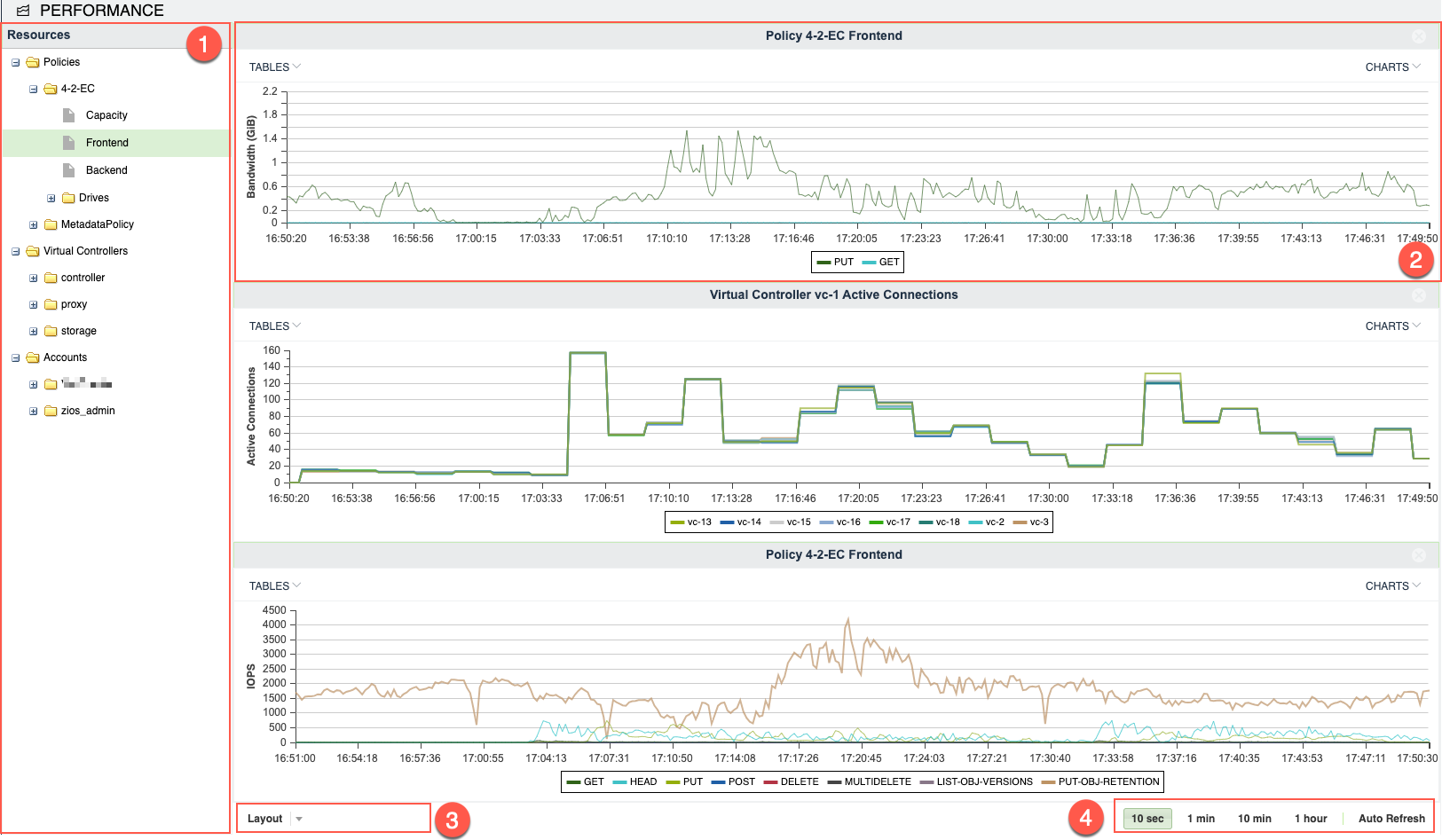
Resources Tree: The Resources Tree lists all the data path objects that currently exist in the NextGen Object Storage:
Policies (data policy and metadata policy including their respective drives)
Virtual Controllers (grouped by their type)
Accounts
Users
Container Replication
Resource Tile: The Performance Monitor has 1 to 9 resource tiles depending on the chosen layout. Each tile contains either a table or a chart.
Layout Selector: Select from the supported tile layouts, with choices of one, two or three rows, and one, two or three columns of tiles.
Interval Selector: Allows switching between different intervals. The interval is a sampling period. Each interval is a single point in the chart. This point represents the average value during that interval.
For examples: If 1 minute interval was selected, 60 points are displayed. Each one is the average value for that specific minute. In total the last 1 hour is displayed.
The interval selection affects all tiles.
Customizing the Performance Monitor
Customizing the Layout
Go to Object Storage GUI > Performance and click the Layout selector.
Select the layout of your choice. Note that if the selected layout has fewer tiles than the previously displayed layout, the other tiles will be lost, and should be selected again.
Drag the object of interest from the Resources tree, and drop it into a tile. Do the same for all tiles.
Customizing a Tile
Each tile represents a single resource, and provides a number of display options related to the specific resource. The display can be either a table of the most current performance figures, or a chart over time of the recent history.
To display a chart, click the Charts button on the top right corner of the tile, and select the metric of interest.